
DJing
May 24, 2018
How to Make Free Animated GIFs
LSA has created this super easy step-by-step visual tutorial to help you create professional animated GIFs in the fastest possible way on your iPhone or iPad with a collection of free apps so you can make your blog posts stand out with some highly creative eye catching animated visuals.

What is a GIF?
GIF, which stands for graphic interchange format, is a filewhich supports a series of animated images that last for just a few seconds andcan loop continuously. They can be snippets of video or animated visuals youhave made yourself. Animated GIFs are seen all over the Internet and are mostly used for fun and entertainment purposes but they can also be an extremely powerful tool for onlinemarketing and highly effective for generating more visitorengagement when used in a blog post, in a similar way as video. If you don’t have a relevant video to accompany written content i your postit is essential you include an animated GIF instead. Sometimes an animated GIF isbetter choice than a video. GIFs can be much more cost effective than videos whencreating impressive looking visual content. Plus, a webpage’s loading speed isn’t affected by GIFs as theycan be with videos.
How to make an animated GIF
LSA has created this super easy step-by-step visual tutorialto help you create professional animated GIFs using a collection of free apps on your iPhone or iPad so you can add some highly creative eye catching animated visuals to each of your blogposts helping them stand out and do better in a Google ranking. If youare a blogger with an artistic niche such as an illustrator, musician,designer, DJ or any type of creative talent it is vital youexpress your creativity in every one of your posts. So adding animated videosand GIFs in your content is the easiest most obvious way to do this.
So what do you need to start creating animated content inyour posts?
Start off bydownloading the following apps onto your iPad or iPhone using the app store:
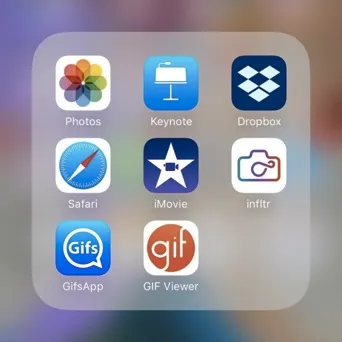
KEYNOTE will be used to create your animation
DROPBOX will store your work and allow you to transfer your work between different apps and websites.
SAFARI will allow you to use Zamzar.com to convert your keynote animation into a .mov
iMOVIE will allow you to edit your movie before turning it into a GIF
INFLTR is useful for when you need to crop or change the frame ratio of your video (optional)
GIFSAPP allows you to convert .mov to .gif for free
GIF VIEWER allows you to view your GIF in action
Tip: Creating animated GIFs on apps you can download and use for freeisn’t as straightforward as it first appears. There are countless differentapps all promising to do the same as the ones I have selected here but they canbe very misleading because many of them turn out to have hidden charges tounlock all the apps functions. LSA has tested all the GIF making apps availableand has put together a collection offree apps that work together to help you make animated GIFs in the fastest moststraightforward way with just an iPhone or iPad.
We will show you how to use these apps to make an animated GIF butbefore you can create an animated GIF your animation needs to be built in apresentation app before being converted into a video. The final video animationcan then be converted into a GIF. This means that the information in thisvisual tutorial will show you just how easy it is to create free animations.This tutorial will show you how to create free animated videos. You can alsouse it to create free animated logos and you can use it to create free animatedtext. Whatever animated content you chose to make and add in your blog postswill help encourage far more visitor engagement.
Open Safariand save Zamzar.com in your bookmarks. Make sureyour iPhone is using Safari as its default browser for downloading files.
Open Keynoteto start working on your presentation/animation
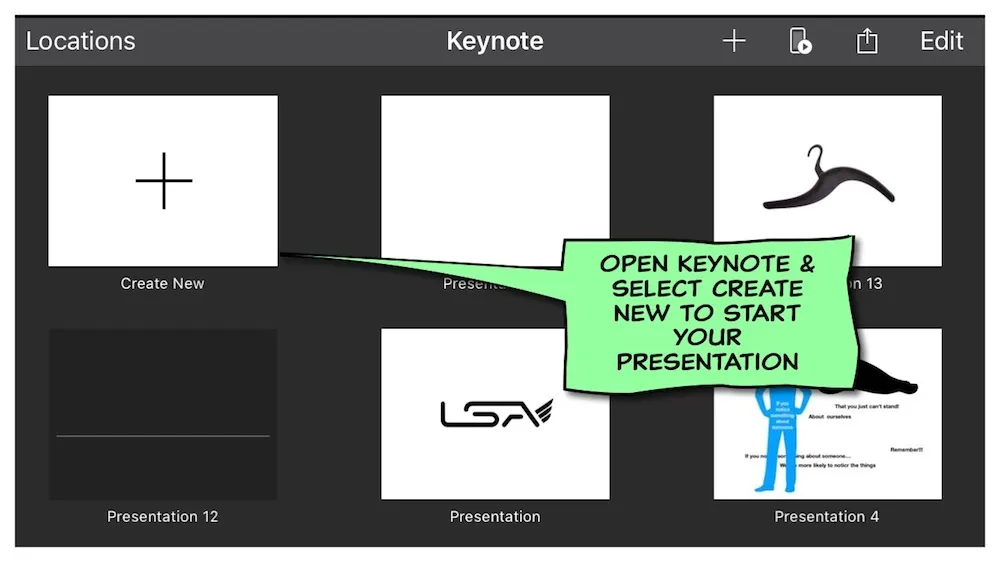
When you open a new presentation you can use the default text providedor delete it to start with a clear slide. We advised that you use only oneslide to create your GIF because adding slides will make the GIF to large.
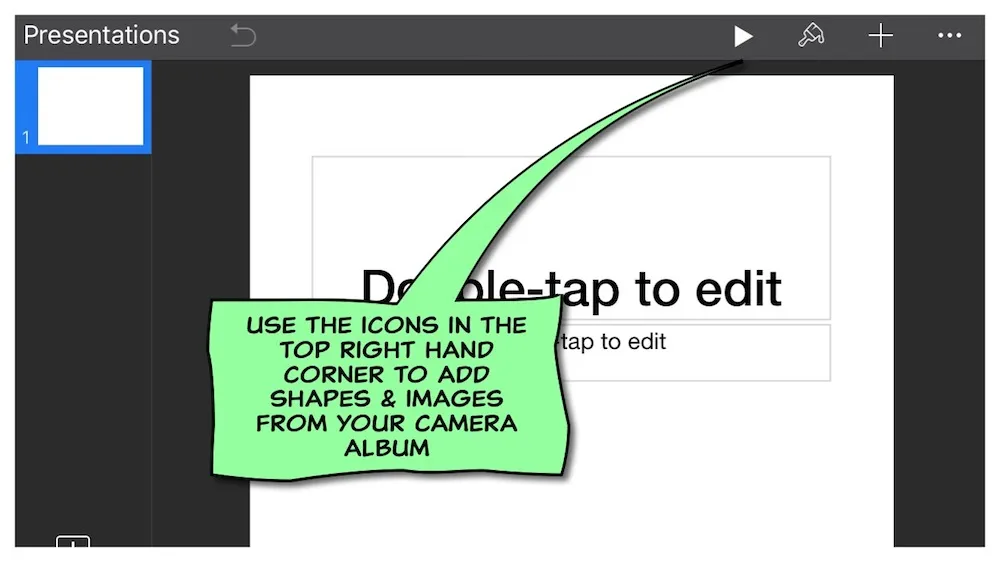

Select the cross icon to import images from your albums. You can also find alibrary of different, charts, shapes etc as well. Explore the options andexperiment with them. I have prepared a few images to use in my animation.
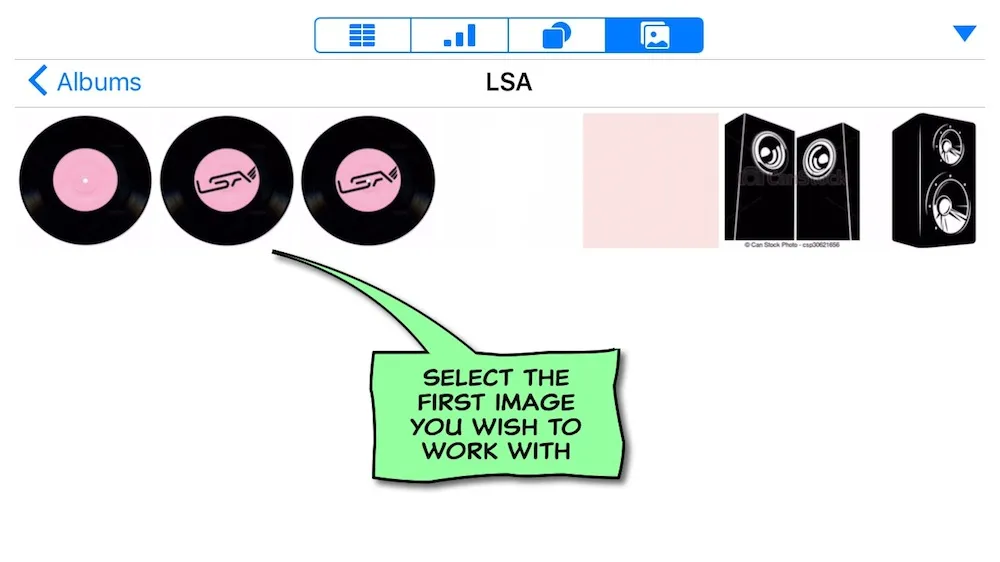
Once youhave the image on the slide you can begin working on it. I have selected thisimage of a record with the LSA logo as my first image. You can rotate,adjust the size, add a border, reflection or shadow. You can also removesections of the image using the alpha tool.
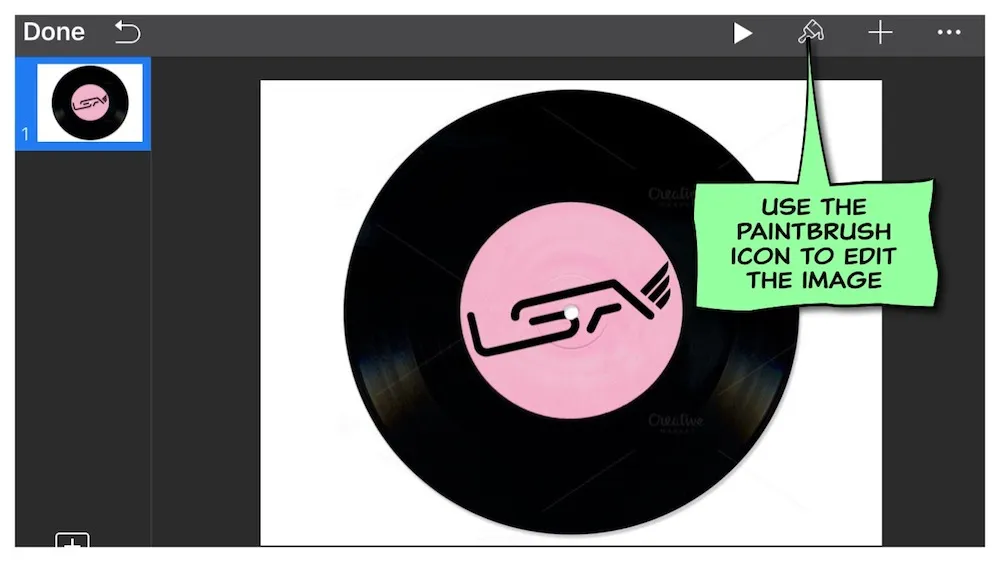

Tip: Preparing each of your images beforehand so they are easy to cutout using the alpha tool will save you time and make the whole process easier.
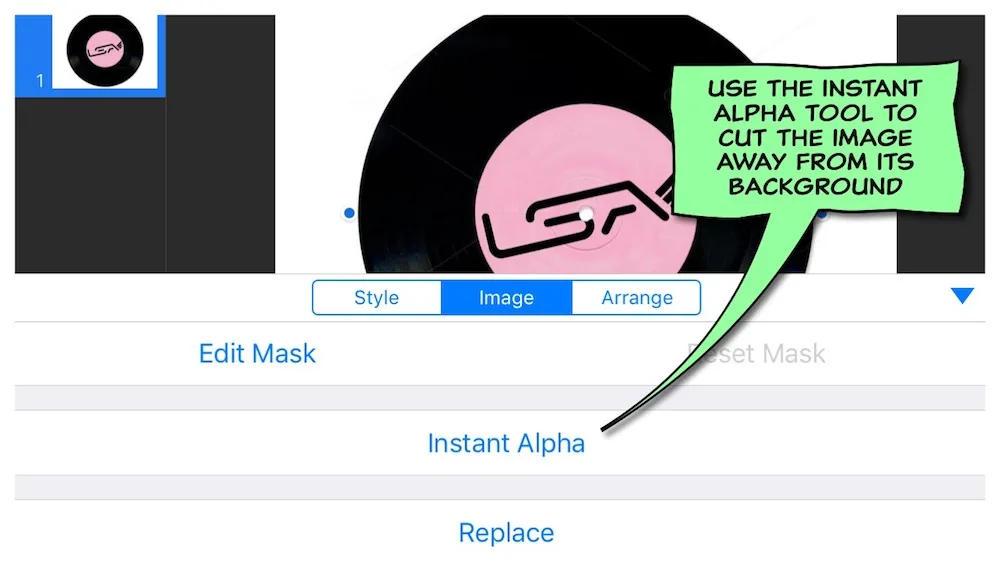
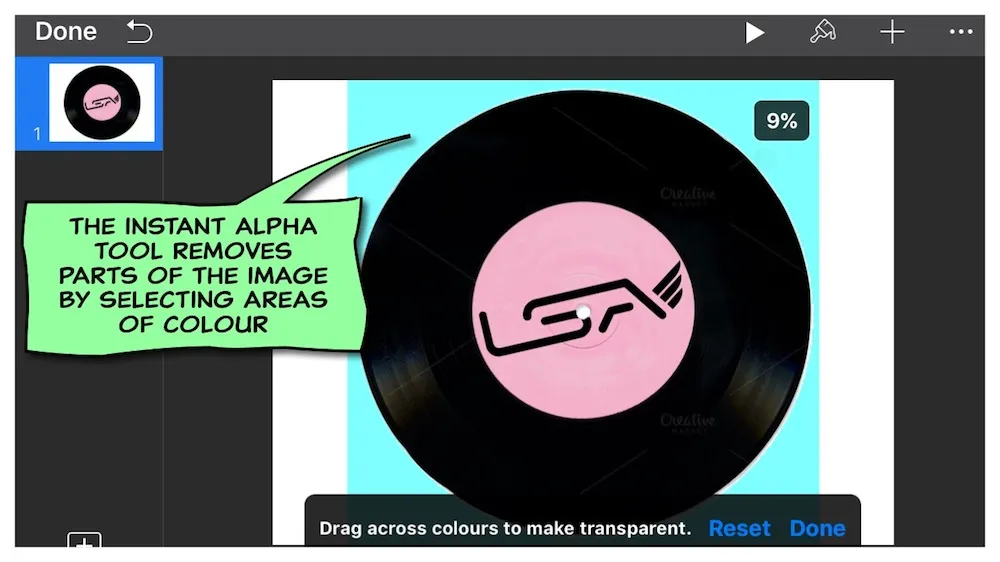
In this image I am removing the white background. The bolder the colourdistinction between the areas you wish to cut the better the instant alpha toolwill work.
Tip: Use the percentage to judge how strong the alpha tool is working,
There are different animation effects available for building your imageinto view and out of view.
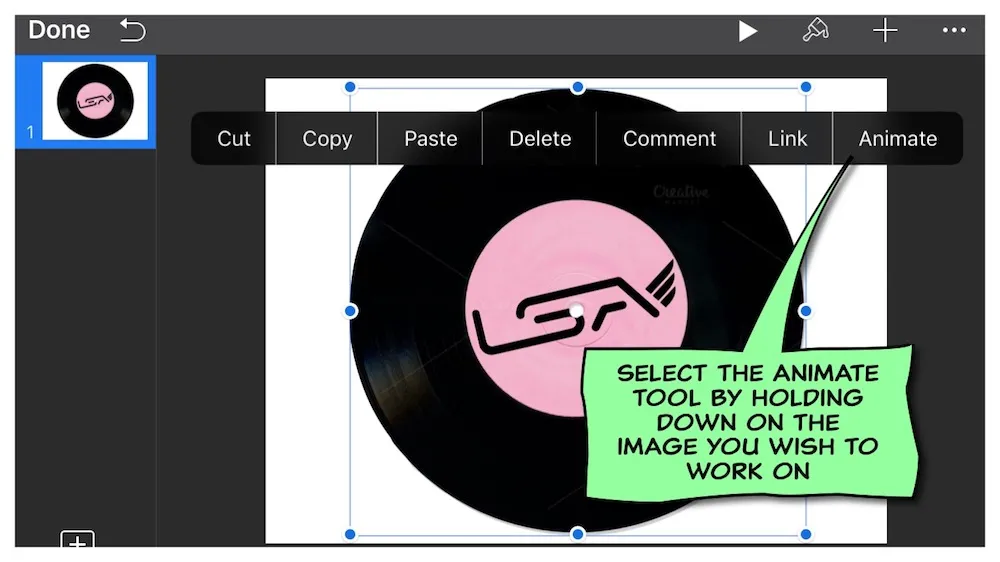
By selectingdifferent animation effects for each of your images and selecting times anddurations for them to appear and disappear can create clever effects.Experiment and have fun. You’ll be surprised at what you can do with a fewsimple well-timed effects.
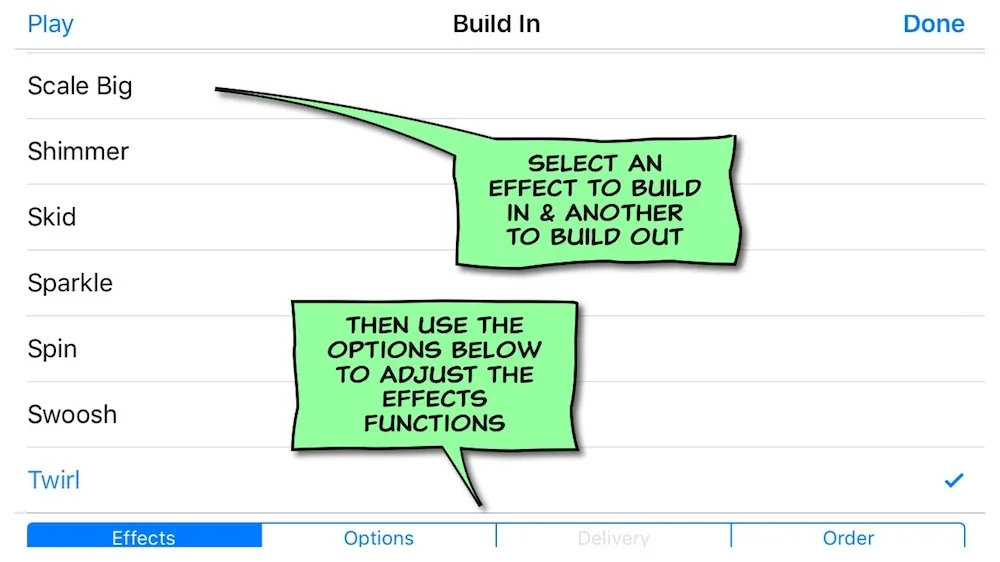
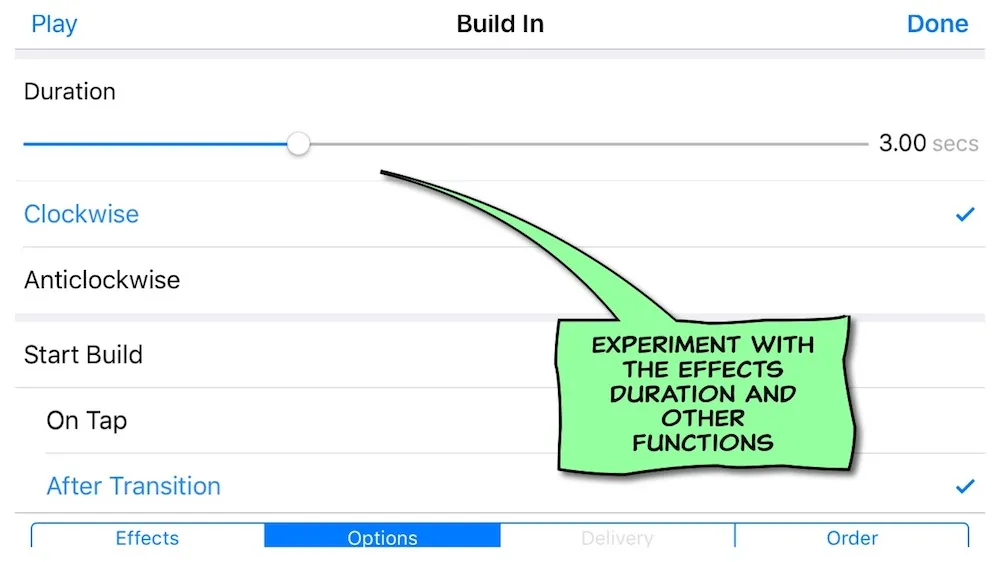
I have added a twirl effect to build the image of the record in and aswoosh effect to build out. I have adjusted the duration of the effects andselected the time in which they start.
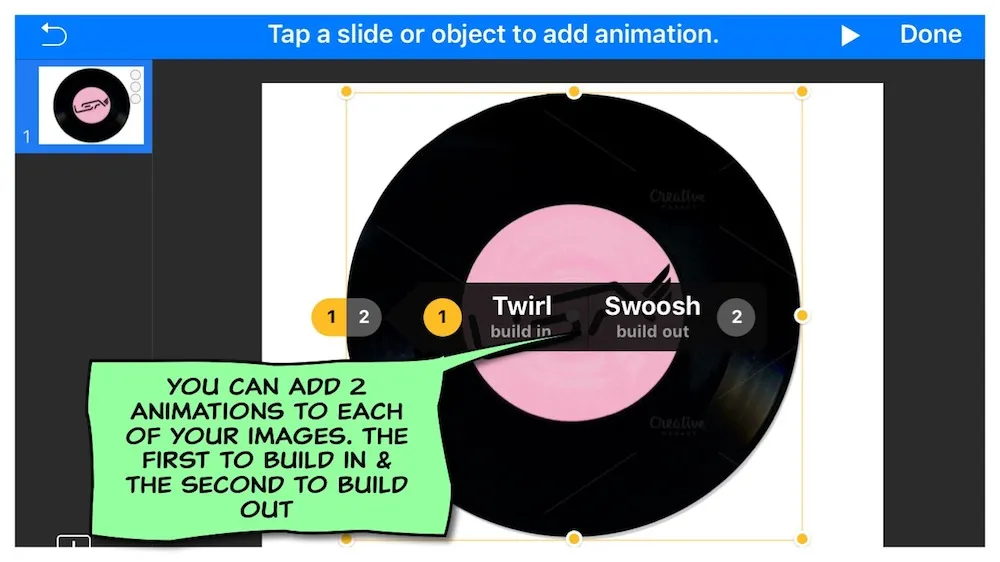
I go on to do the same with a second image of a record, editing the imagethen adding effects that manipulate when and how the image appears anddisappears.
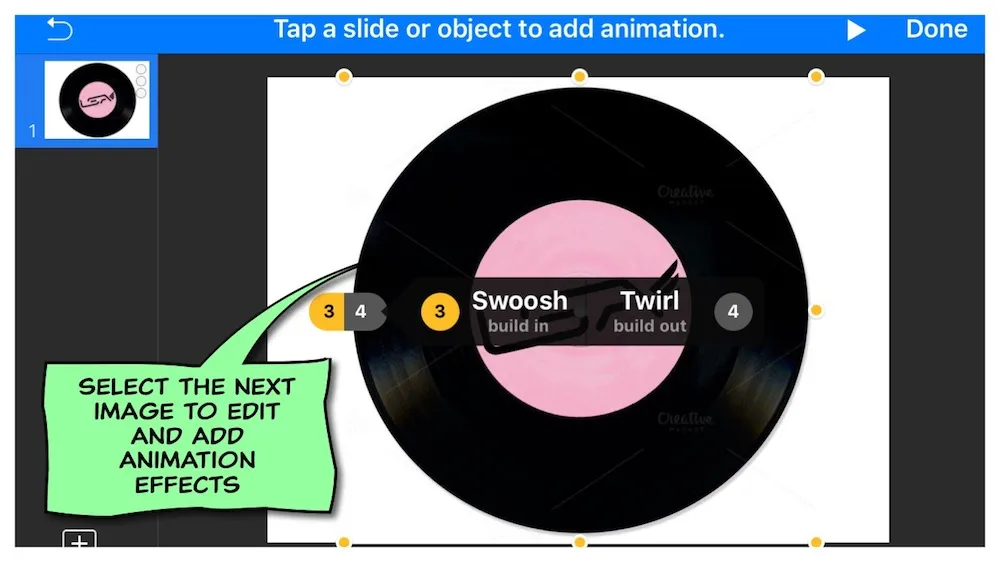
I then dothe same with a third image. This time I use an image of the LSA logo andselect a different animated effect to build out with.
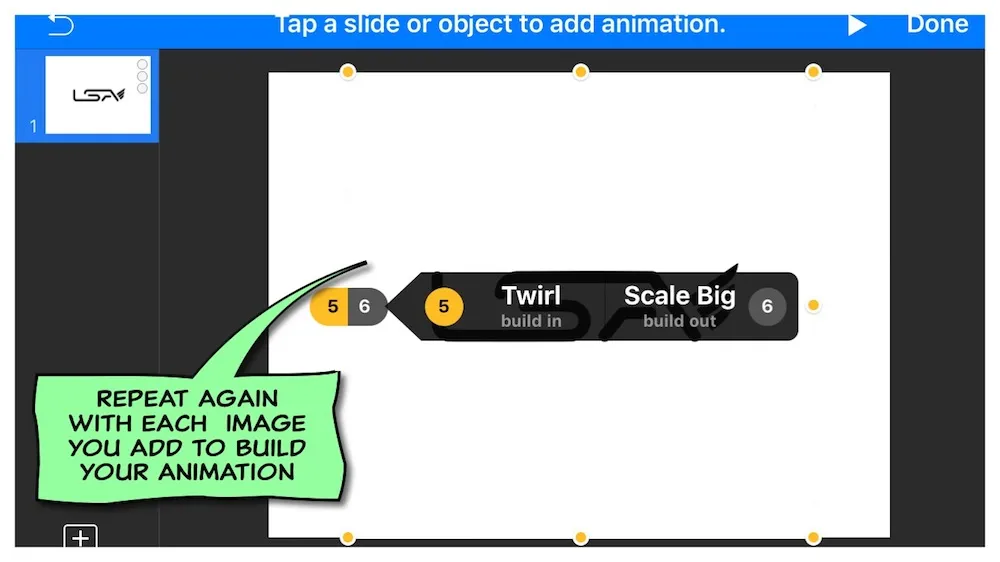
Tip: As you layer on each image the slide will become more and morecrowded. It’s important to remember to keep your GIF simple by imagining yourGIF run in a three to five second loop. If your GIF is to complicated or toolong it will take up to much memory and be difficult to post.
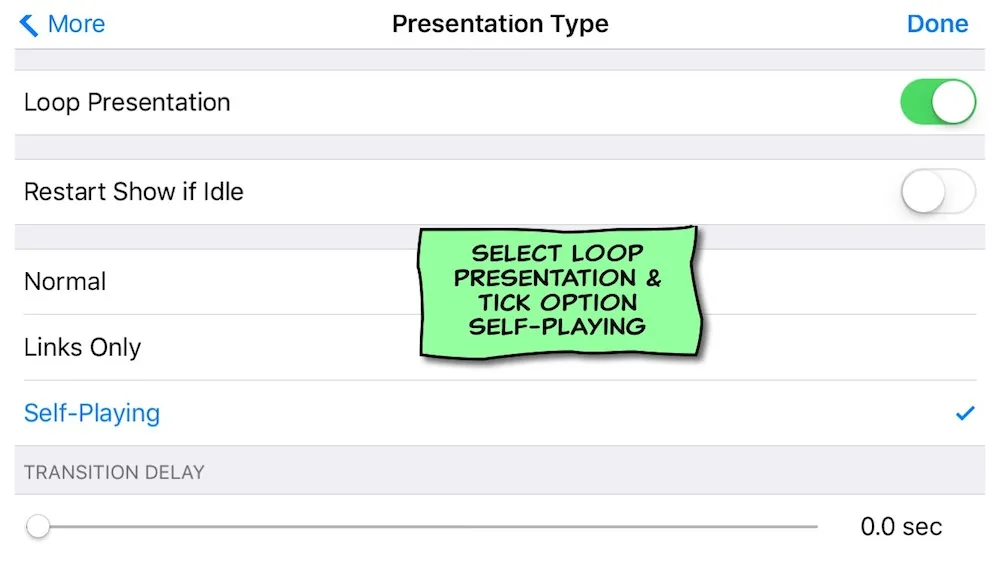
Remember tokeep everything on one slide. Each image you add to the slide is like a layerof animation. You can move the layers around from top to bottom. Once you haveadded all your images, edited them, chosen the layer for them, added ‘build in’and ‘build out’ effects on the images you wish to animate, you can then go into‘Presentation Type’ to make sure that all the animations play in a loop.You can also adjust or remove things and delay time between the beginning andend of the slide. Remember to adjust the times of all the animations so thewhole slide is under 10 seconds long. Ideally GIFs like to be 3 seconds long. Ifind that I need 6 seconds to make most my GIFs. The longer they are the harderthey can be to share online.
Tip: As you build your GIF you should try and see how it will play.Always think about how long you want it to be. Don’t worry if its a littlelonger than you planed you can speed it up in iMove after you have converted itinto a .mov .
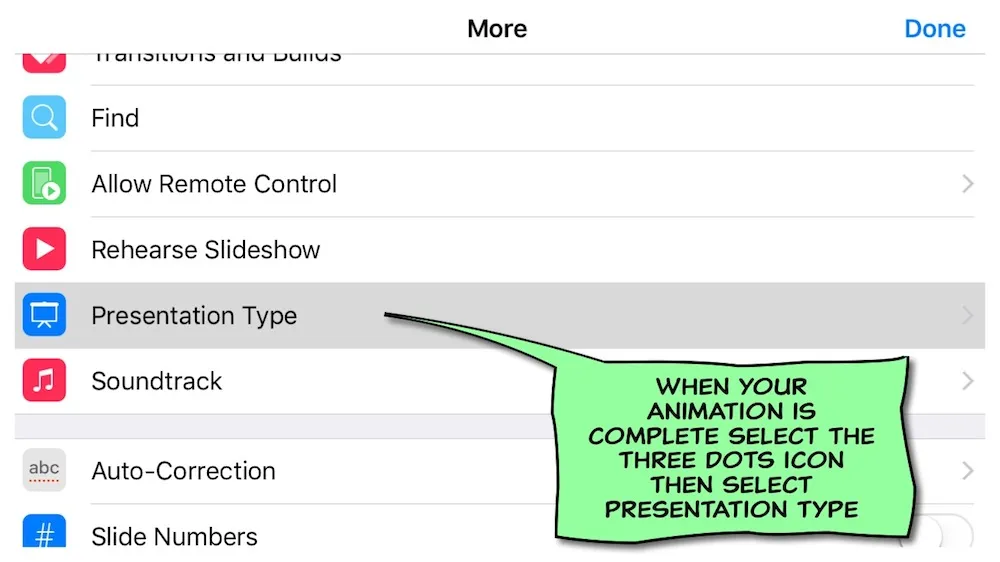
Tip: When you have everything working just how you want it you can saveit into your Dropbox account. This is done by clicking on the ‘Send a Copy’option.
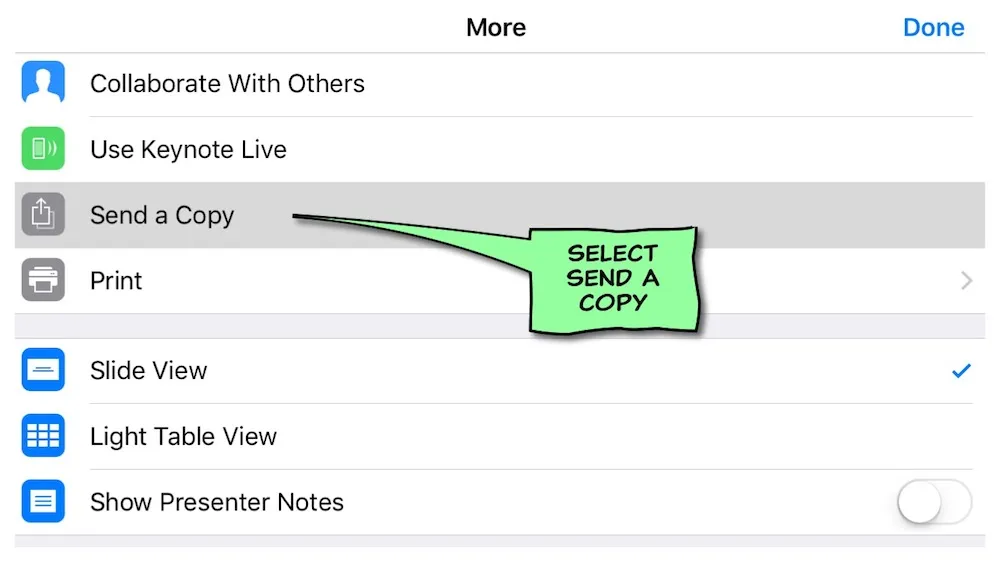
Tip: Make sure you name and save your Keynote presentation in yourDropbox account.
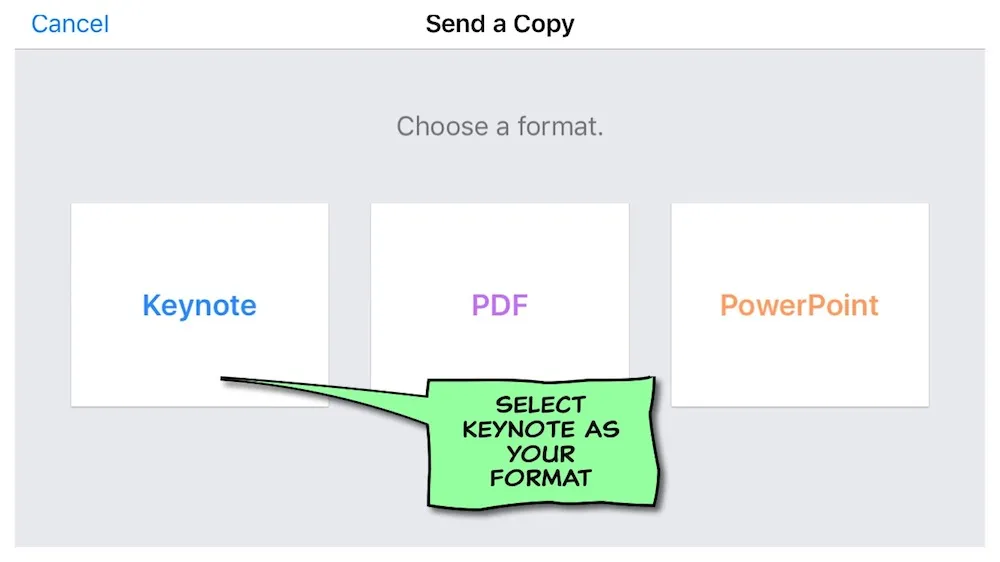
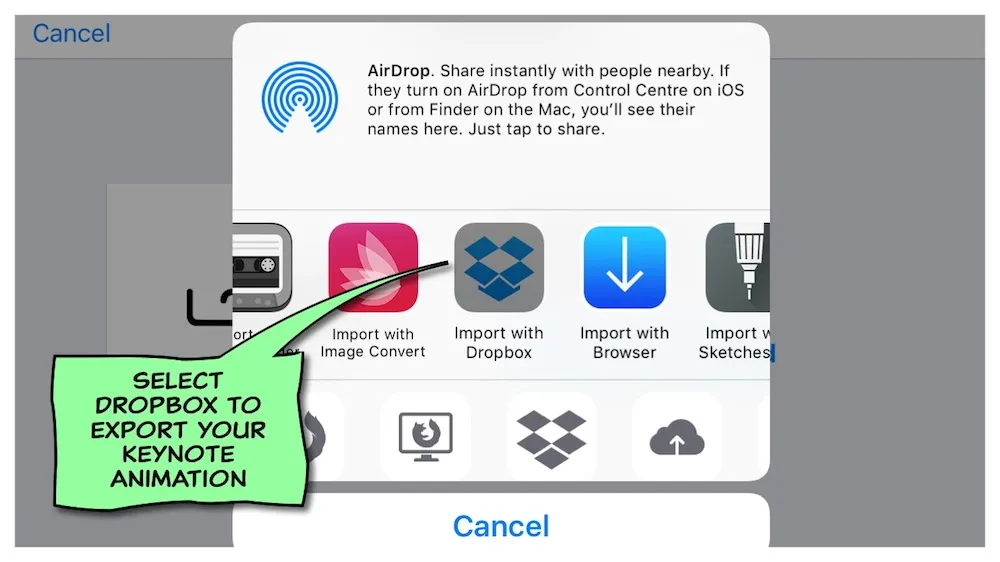
You now wantto convert the keynote document in your Dropbox into a .mov . There are avariety of ways you can do this but I have found Zamzar.com to be the best free online fileconverter.
Open Zamzar.com in the browser on your iPhone/iPadand follow the four steps.
Step 1) click on the choose files button, then thedropbox icon to locate and attach your Keynote document.
Step 2) Select .mov inthe convert files button.
Step 3) Enter your email address.
Step 4) Click theconvert button.
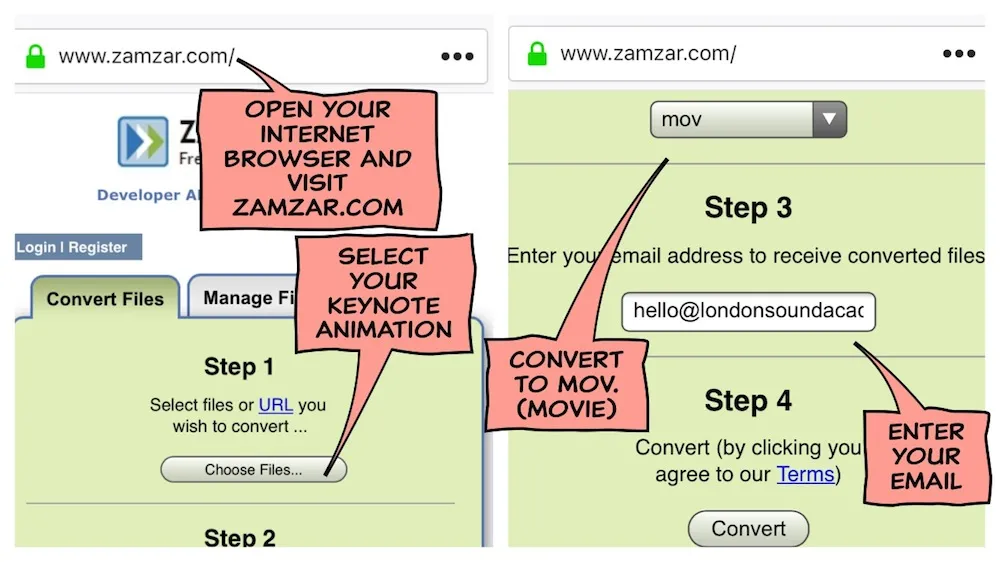
Tip: Make sure you allow the file to fully upload before you do anythingelse with the iPhone/iPad.
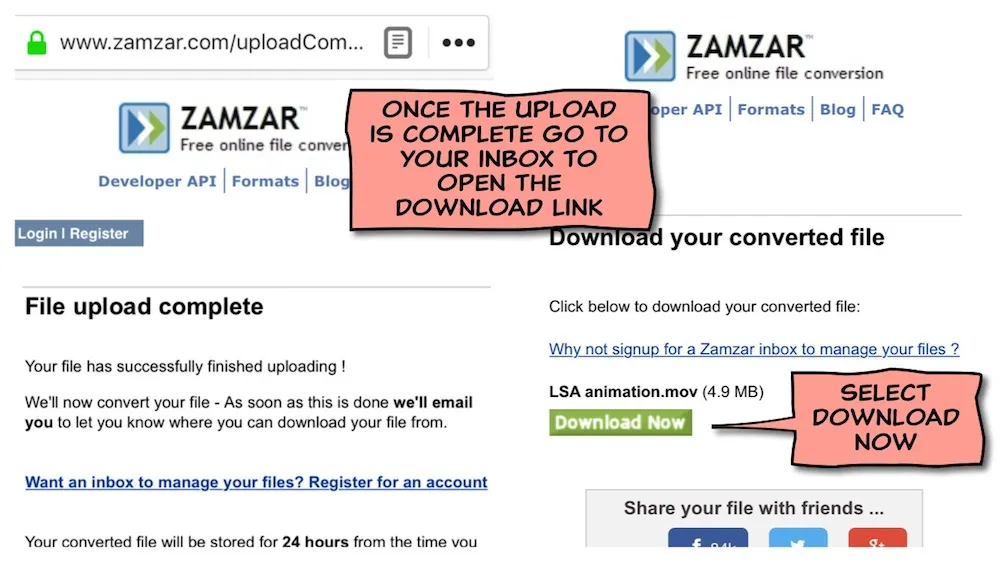
Tip: Sometimes you get emailed the link to download your converteddocument straight away but occasionally it can take a few minutes. Don’t leaveit to long to open this link and download because it wont be available forlong.
Tip: I have Safari set up as my main browser on my iPhone/iPad so when Iclick on a link from my email it will open in Safari automatically. Safariseems to work better than other browsers when downloading in Zamzar.com
Once you have clicked ‘Download New’ button in the web page you havejust opened you will see this empty looking web page open. It looks asthough something hasn’t worked but this is all perfectly normal. All you haveto do is click on the share icon in the top right corner, 3rd from the end. Youcan then click on the Save to Dropbox icon. Save your .mov where you can findit easily.
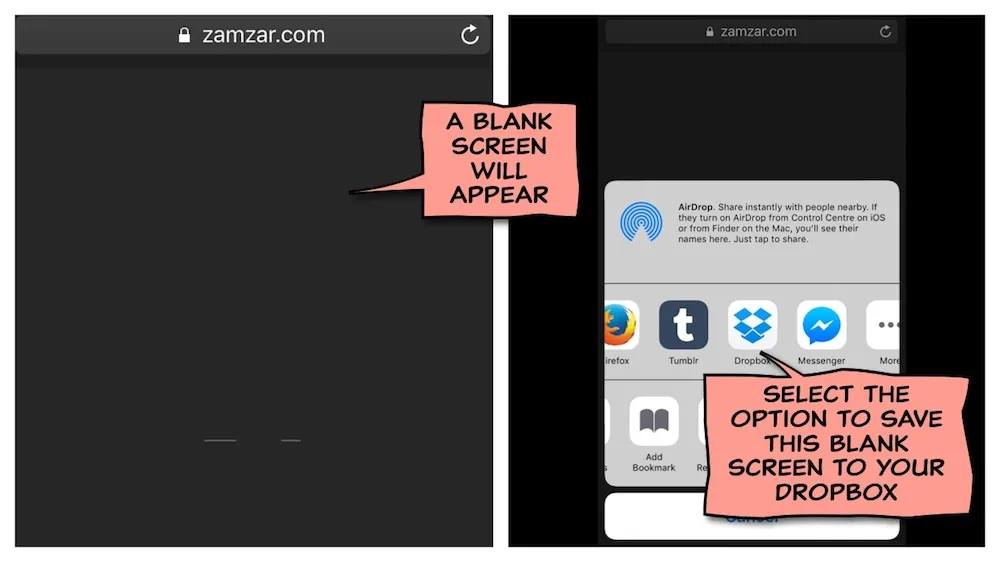
You can then open your Dropbox and export your movie to your photoalbum.
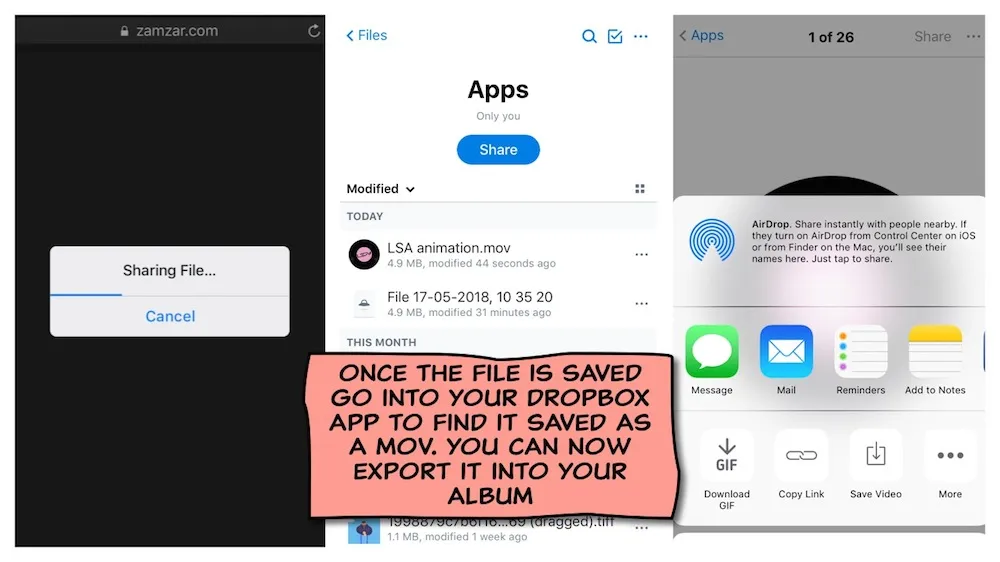
You now havea .mov version of the Keynote presentation you have made. You can open this.mov in iMove now and increase the speed.
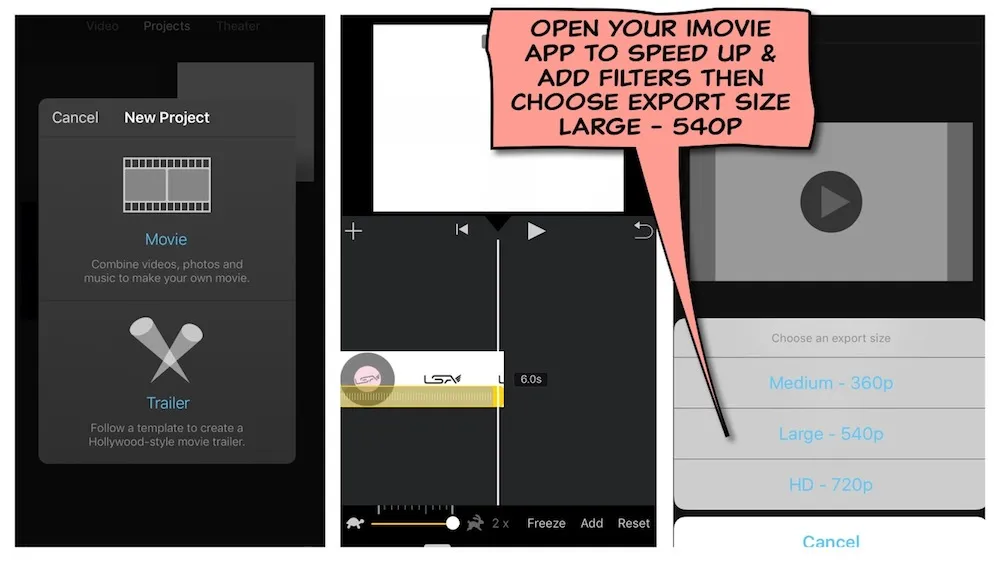
Before turning your .mov into a GIF you can fine tune your animation byediting it in the iMovie app. You adjust the speed, make cuts and add filtersor text. I have adjusted the speed so the animation is a more manageable 6seconds long. I have also added a colourful filter. I then export it as a largeiMovie. It is now saved in the photo album.
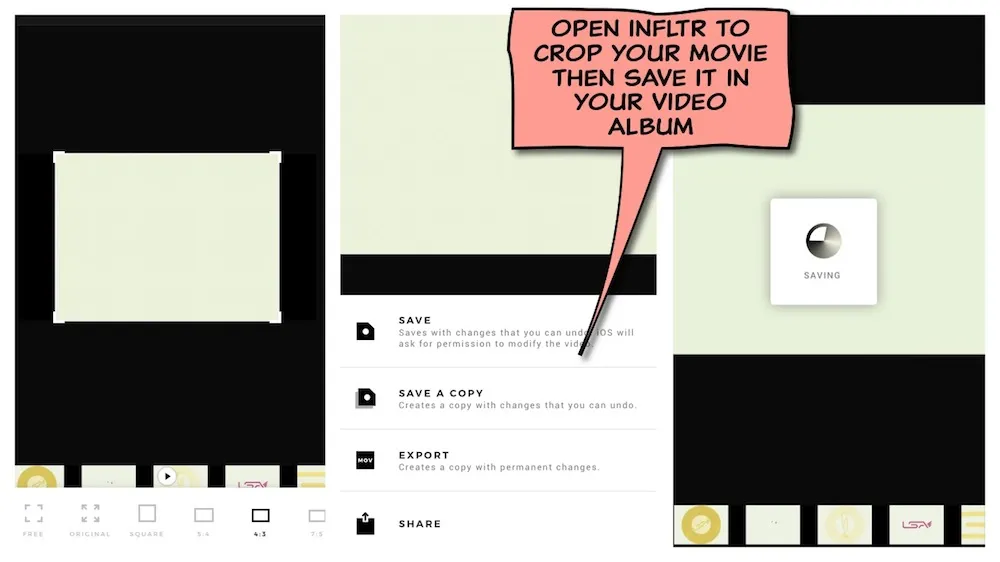
Using the Infltr app is optional. It’s really only necessary if youwish to crop or edit the frame ratio of the video. You can also use similarfeatures like the ones found in iMovie
Open GifsAppand select create a GIF from video. Select ‘done’ to reveal the individualframes then select preview. Your animated video is now fully converted into aGIF and you can save it in your album.
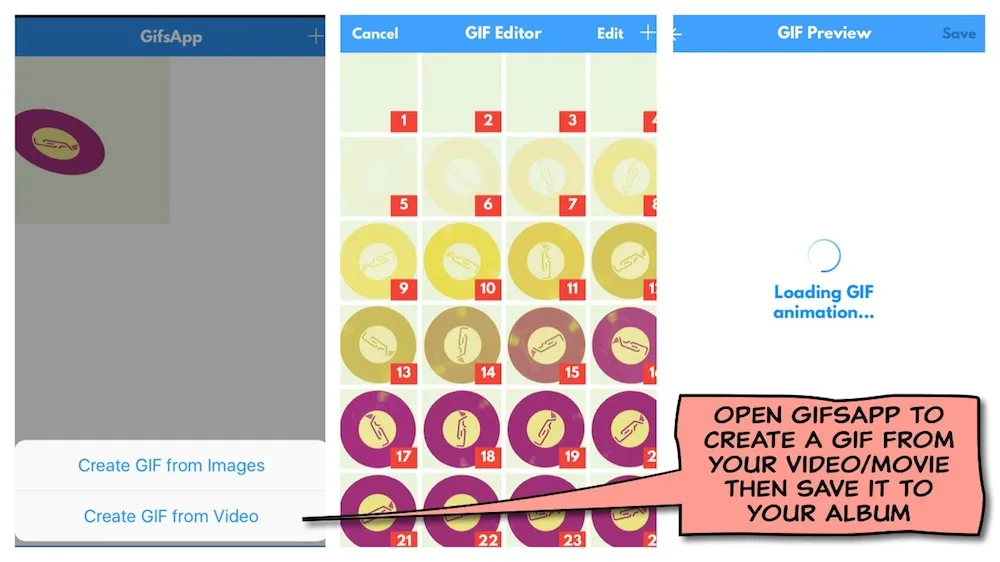
It is possible to save a GIF in your photo albumbut it can only be viewed as a static image of the very first frame of your GIF. Toview the GIF as an animation on your phone you will need the GIF Viewer app. Itworks very similar to your camera album.
There you have it. You can now go wild and make an eyecatching GIF for every post you share on your blog.
If you want to create a GIF that combines video andanimation the steps in this tutorial can help you achieve this by ignoring theKeynote and Zamzar.com stages and focusing on the iMovie, Infltr and GifsApps stages.
Don’tbe afraid to experiment, try new things. Just make sure you keep it simple andthink of clever ways you can loop it. Remember a well made GIF will attract tentimes more visitors to your blog and be far more likely to be shared on your readerssocial media. You may even create something that goes viral.
Are you passionate about music? Discover a new musical talent by learning how to DJ or by learning the art of music production. Or if you already have some experience behind the decks, why not build refine your existing DJ skills. Are you looking for a unique gift experience for a music obsessed friend? Take a look at our range of intermediate and advanced DJ courses. We offer 1 to 1 tuition for all experience levels and music genres? Our students learn faster, gain more success and regularly secure gigs at Ministry of Sound, Egg and Electric Brixton and our Music Production students have been signed to Spinnin, Universal and Island Records! This is probably why London Sound Academy has been rated the best DJ and Music Production school in London since 2010.